
Step-by-Step Guide to Using a SOCKS5 Proxy on Telegram
Easiest Method: Telegram SOCKS5 Proxy on Android
Telegram for Android allows you to manually configure a SOCKS5 proxy directly within the app.
Step 1: Open Proxy Settings
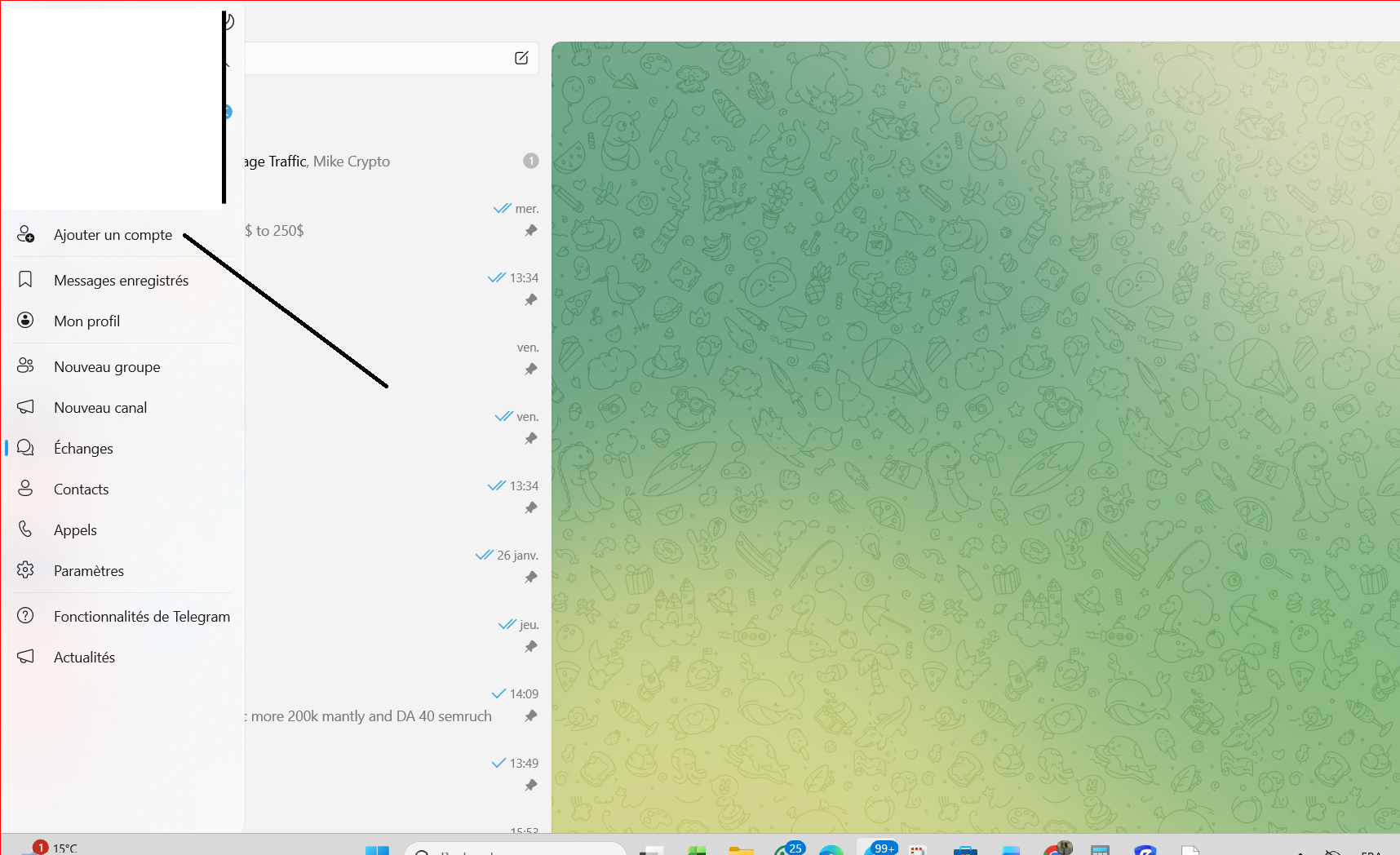
- Tap the three-line menu in the top-left corner.
- Select Settings.
- Scroll down and tap Data and Storage.
- Under Proxy, tap Proxy Settings.
Step 2: Add a SOCKS5 Proxy
- Toggle Use Proxy to enable proxy settings.
- Tap Add Proxy and choose SOCKS5.
- Enter your proxy details:
- Server (IP address)
- Port
- Username
- Password
- Tap the checkmark in the top-right corner to save.
Telegram SOCKS5 Proxy on Windows
You can also configure a SOCKS5 proxy using the Telegram Desktop app on Windows.
Step 1: Open Proxy Settings
- Launch Telegram Desktop.
- Click the three-line menu in the top-left corner.
- Select Settings.
- Click Advanced.
- Under Data and Storage, select Connection Type.
Step 2: Add a SOCKS5 Proxy
- Choose Use custom proxy or Add proxy.
- Select SOCKS5 as the proxy type.
- Enter the following details:
- Hostname (IP address)
- Port
- Username
- Password
- Click Save to apply the changes.
Easiest Method: Telegram SOCKS5 Proxy in Chrome
Telegram Web uses your system’s proxy settings, so you’ll need to configure Chrome at the system level.
Step 1: Open Chrome Settings
- Click the three dots in the top-right corner of Chrome.
- Select Settings.
Step 2: Open System Proxy Settings
- Scroll to the System section.
- Click Open your computer’s proxy settings.
Step 3: Enable the Proxy Server
- In your system’s proxy settings, enable Use a proxy server.
Step 4: Enter Proxy Details
- Enter your SOCKS5 proxy IP or hostname in the Address field.
- Enter the proxy Port (for example, 1080).
- Click Save.
Step 5: Access Telegram Web
Because Webshare SOCKS5 proxies require authentication, you’ll be prompted to enter your username and password when browsing.
- Open Telegram Web.
- Log in normally—your traffic will now route through the SOCKS5 proxy.
How to Test a Telegram SOCKS5 Proxy
After setup, it’s important to confirm the proxy is working.
Check Connection in Telegram
- Open Telegram and ensure the proxy is enabled.
- Send a message.
- If the message sends successfully, the proxy is active.
Use an IP Lookup Tool (Web Users)
- Visit an IP-checking site such as IPInfo.
- Compare your IP address before and after enabling the proxy.
- If the IP changes, the proxy is working correctly.
How to Turn Off a Telegram SOCKS5 Proxy
If you no longer need the proxy, you can disable it easily.
Disable Proxy in Chrome
- Open your system’s proxy settings.
- Turn off Use a proxy server.
- Chrome will stop routing traffic through the proxy.
Disable Proxy on Android
- Open Telegram and go to Settings.
- Tap Data and Storage > Proxy Settings.
- Toggle Use Proxy off.
Disable Proxy on Windows
- Open Telegram Desktop.
- Go to Settings > Advanced > Connection Type.
- Select Disable proxy.
Wrapping Up: Using a SOCKS5 Proxy with Telegram
Using a SOCKS5 proxy with Telegram improves privacy and helps bypass regional restrictions. Whether you’re on Android, Windows, or Chrome, the setup process is simple and flexible. If needed, you can disable the proxy at any time with just a few clicks.you can use our proxy