
Windows provides built-in networking options that allow users to configure proxy connections without installing additional software. Among the available proxy protocols, SOCKS5 stands out as the most advanced and flexible option. It supports authentication, handles multiple types of traffic, and offers better performance compared to older proxy standards. This guide explains what a SOCKS5 proxy , why it is useful, and how to configure it on a Windows computer, including browser-specific setups.
What Is a SOCKS5 Proxy?
A SOCKS5 proxy is a network protocol that routes internet traffic through an intermediary server before it reaches its destination. Unlike HTTP proxies, SOCKS5 operates at a lower level, meaning it can handle various types of traffic such as web browsing, email, file transfers, and application data. It does not modify packets, which results in better compatibility and fewer errors.
Because SOCKS5 supports username and password authentication, it is more secure than open proxy solutions. It also works well with applications that require stable and persistent connections, making it suitable for both personal and professional use.
Benefits of Using a SOCKS5 Proxy on Windows
Using a SOCKS5 proxy on a Windows system provides several advantages:
- Helps bypass network restrictions and firewalls
- Allows access to region-restricted or blocked websites
- Improves privacy by masking your real IP address
- Supports multiple applications, not just browsers
- Offers better speed and reliability than older proxy types
For users who manage multiple accounts, run automation tools, or need a consistent connection for data-related tasks, SOCKS5 proxies are often the preferred choice.
Manually Setting Up a SOCKS5 Proxy on Windows
Windows 10 and Windows 11 allow SOCKS5 proxy configuration through system network settings. This method does not require third-party software and applies to all applications that rely on Windows networking.
Step-by-Step Instructions
- Open Control Panel from the Start menu.
2.Select
Internet Options.
3.Go to the
Connections tab.
4.Click
LAN Settings.
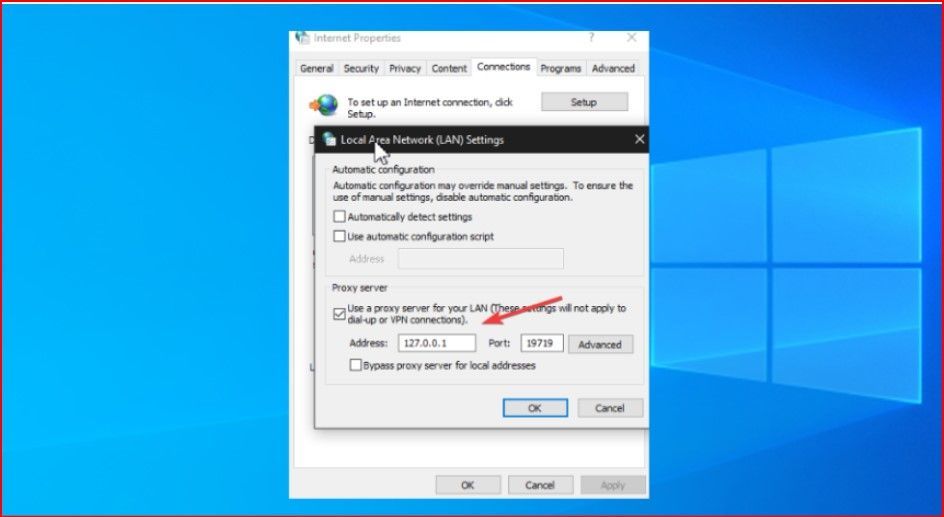
4Click LAN Settings.
5.Enable Use a proxy server for your LAN.
6.Check Bypass proxy server for local addresses to avoid routing local traffic unnecessarily.
7.Click Advanced.
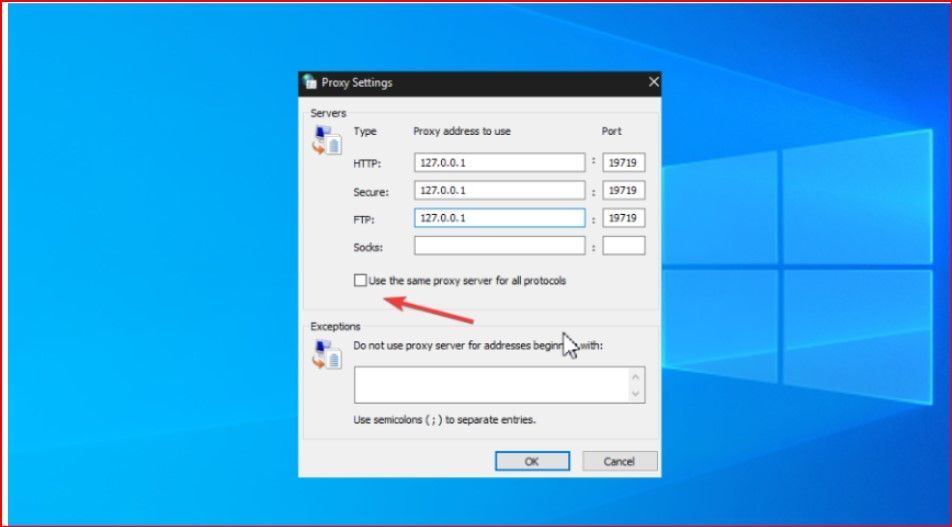
8.Disable Use the same proxy server for all protocols.
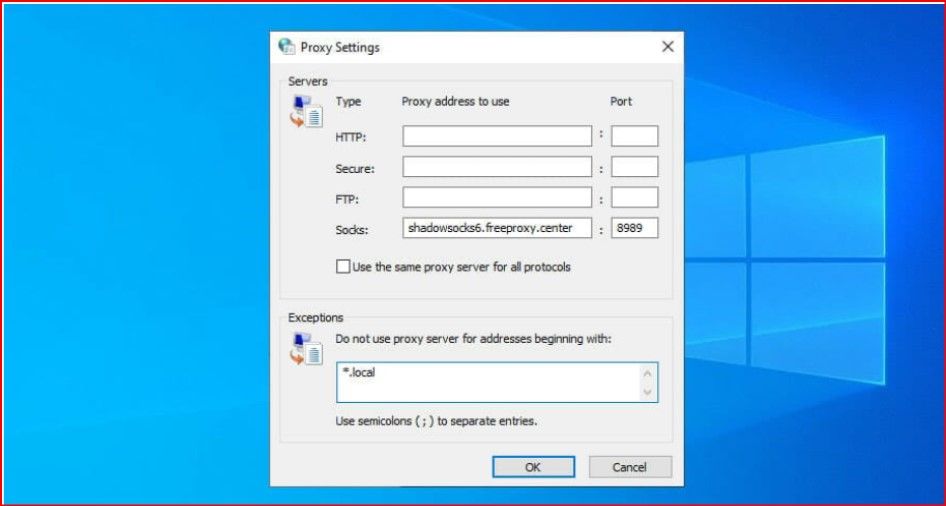
9.In the SOCKS field, enter your proxy server IP address and port number.
10.Remove any entries under HTTP, Secure, and FTP.
11.Click OK, then Apply to save the changes.
Using a SOCKS5 Proxy Only in Mozilla Firefox
Some users prefer to apply proxy settings only to a specific browser instead of the entire system. Mozilla Firefox supports independent proxy configuration, which makes it ideal for this purpose.
Firefox SOCKS5 Configuration Steps
- Download and install Mozilla Firefox on your Windows device.
- Click the menu icon (≡) in the top-right corner.
- Open Settings.
- Under the General section, scroll down to Network Settings
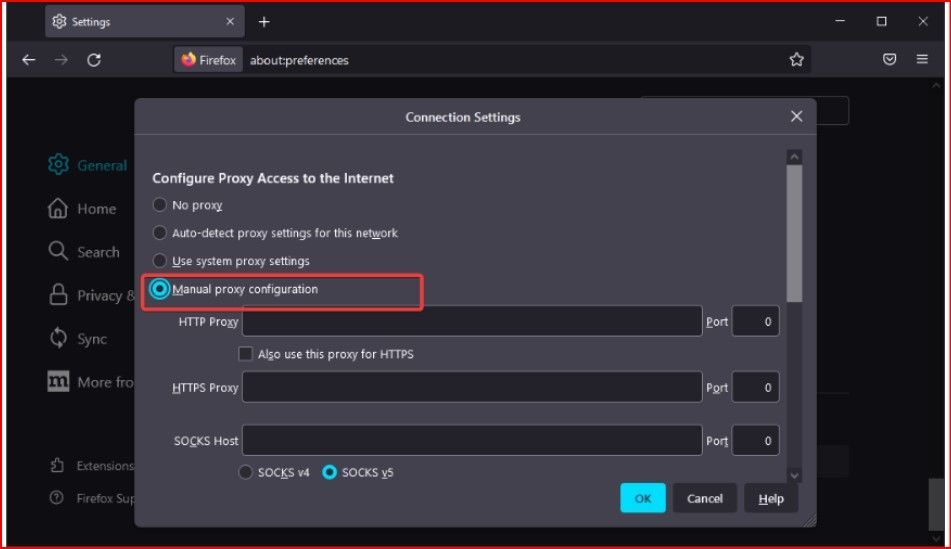
5.Click Settings.
6.Choose Manual proxy configuration.
7.Enter the SOCKS5 proxy host and port.
8.Select SOCKS v5 as the protocol.
9.Click OK to confirm.
10.After setup, Firefox will route all browsing traffic through the SOCKS5 proxy, while other applications and browsers continue using a direct internet connection.
Configuring a SOCKS5 Proxy in Google Chrome
Google Chrome does not have its own proxy configuration panel. Instead, it relies on the operating system’s proxy settings.
Chrome Setup Instructions
- Open Chrome and click the three-dot menu.
- Select
Settings.
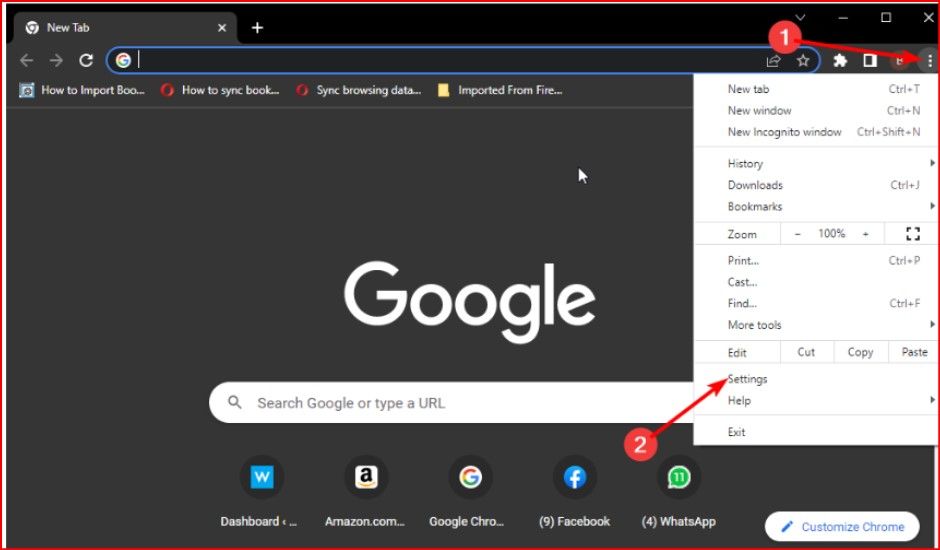
4.Scroll down and open the System section.
5.Click Open your computer’s proxy settings.
6.Enter your SOCKS5 proxy details in the Windows proxy configuration panel.
Once configured, Chrome will follow the Windows SOCKS5 proxy rules automatically.
Common Use Cases for SOCKS5 Proxies on Windows
SOCKS5 proxies are widely used across many industries and scenarios:
- Secure and anonymous web browsing
- Accessing geo-restricted content
- Managing multiple online accounts
- Running automation and scraping tools
- Improving privacy on public or shared networks
Because SOCKS5 works with different traffic types, it is especially useful for applications that require more than simple web access.
Troubleshooting SOCKS5 Proxy Issues
If your SOCKS5 proxy is not working correctly, consider the following checks:
- Verify the IP address and port number
- Confirm authentication credentials
- Ensure other proxy fields (HTTP/HTTPS) are empty
- Restart the browser or application
- Disable VPNs that may conflict with proxy settings
Most issues are caused by incorrect credentials or conflicting network configurations.
Final Thoughts
Configuring a SOCKS5 proxy on Windows is a practical solution for users who need better privacy, unrestricted access, and reliable network performance. Whether applied system-wide or limited to a specific browser, SOCKS5 offers flexibility that older proxy methods cannot match. With proper setup and authentication, it becomes a powerful tool for both everyday browsing and advanced online tasks.